> ## Documentation Index
> Fetch the complete documentation index at: https://docs.droidoxy.com/llms.txt
> Use this file to discover all available pages before exploring further.
# Installation Guide
> Learn how to install Pocket Script
This comprehensive tutorial will walk you through the process of installing the Pocket Script on your cPanel hosting environment, as most of the shared hosting providers use cPanel, we'll focus on it. The process is the same for non-cPanel hosting environment as well.
## Before You Start
1. Ensure your server meets our [requirements](/get-started/server-requirements).
2. Have your Pocket Script purchase code ready.
3. Create a database and note down its name, username, and password.
## Creating Database
Follow these steps to set up a MySQL database and user in your hosting cPanel:
1. Go to `yourdomain.com/cpanel`
2. Enter your **username** and **password**
1. In the cPanel dashboard, scroll to the **Databases** section
2. Click on **MySQL Databases**
3. Under **Create New Database** section
* Enter a name for your database
* Note the database name
4. Click **Create Database**
5. You’ll see a success message. Click **Go Back**.
1. Scroll down to the **MySQL Users** section
2. Under **Add New User**, enter a username and password
* Enter a username for the database
* Use a strong password (you can use the **Password Generator**)
* Note the database username and password
3. Click **Create User**
1. Scroll to the **Add User to Database** section
2. Select the user and database from the dropdowns
3. Click **Add**
4. On the next screen, select/click **ALL PRIVILEGES**
5. Click **Make Changes**
Your database is created and linked to the user with all permissions. Note down the database name, username, and password. Now you can proceed to the installation.
## Installation Process
Follow these steps to install Pocket Script in your hosting cPanel:
1. Go to `yourdomain.com/cpanel`
2. Enter your **username** and **password**
Alternatively, you can use an FTP client as well.
Locate the `New Upload` folder in your Pocket Script package.
* Upload the Contents of `New upload` folder to your server
If you can't find the `New Upload` folder, refer to our [File Structure](/get-started/file-structure) guide.
Open your web browser and navigate to your domain.
* You'll be automatically redirected to the installation page at `/install`.
Follow the on-screen instructions in the installation wizard.
You'll need to provide:
* Database credentials
* Your Pocket Script purchase code
* Application Basic details
* Admin Login Details
Complete all steps as guided by the wizard.
Alternatively, there is a video tutorial provided below.
## Installation Video
A video tutorial on how to install the Pocket Script
## Important Notes
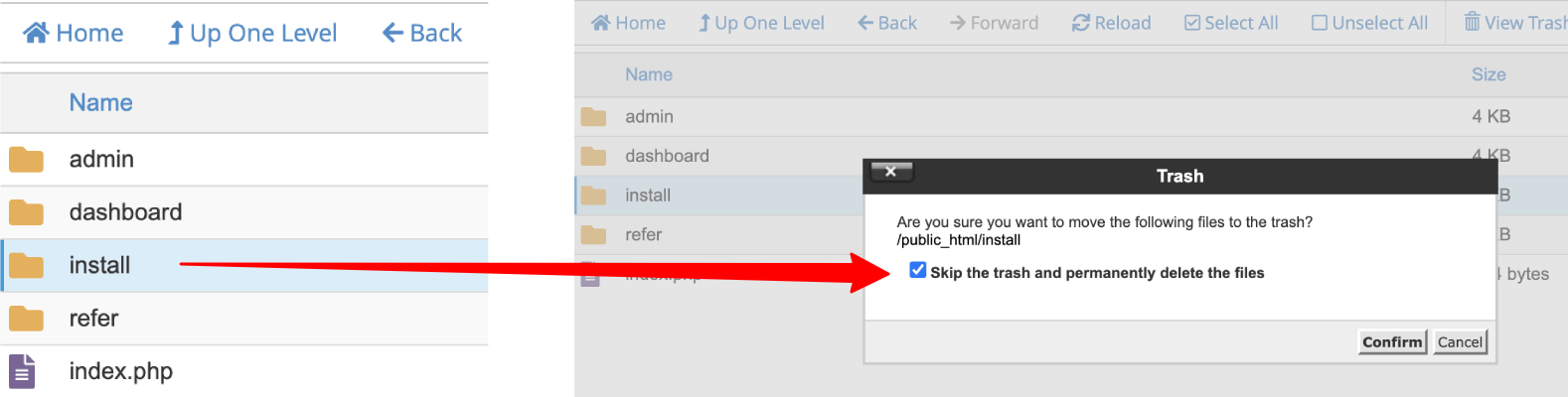
Upon successful installation, you need to remove/rename the install folder
## Troubleshooting
If you encounter any issues during the installation process:
1. Double-check that you've followed each step correctly.
2. Ensure all file permissions are set correctly.
3. Verify that your server meets all the [requirements](/get-started/server-requirements).
4. For more detailed troubleshooting steps, please refer to our dedicated [Troubleshooting Guide](/get-started/troubleshooting).
5. If you're still stuck after trying the solutions in the troubleshooting guide, don't hesitate to [reach out to our support team](https://droidoxy.com/support/).
## Next Steps
After successfully installing Pocket Script:
Follow our [Initial Setup Guide](/get-started/initial-setup) to configure your new installation.
Congratulations! You've successfully installed Pocket Script.
Please configure the script branding, features and offerwall Networks settings before using the platform for the general public.
 ## Troubleshooting
If you encounter any issues during the installation process:
1. Double-check that you've followed each step correctly.
2. Ensure all file permissions are set correctly.
3. Verify that your server meets all the [requirements](/get-started/server-requirements).
4. For more detailed troubleshooting steps, please refer to our dedicated [Troubleshooting Guide](/get-started/troubleshooting).
5. If you're still stuck after trying the solutions in the troubleshooting guide, don't hesitate to [reach out to our support team](https://droidoxy.com/support/).
## Next Steps
After successfully installing Pocket Script:
Follow our [Initial Setup Guide](/get-started/initial-setup) to configure your new installation.
Congratulations! You've successfully installed Pocket Script.
Please configure the script branding, features and offerwall Networks settings before using the platform for the general public.
## Troubleshooting
If you encounter any issues during the installation process:
1. Double-check that you've followed each step correctly.
2. Ensure all file permissions are set correctly.
3. Verify that your server meets all the [requirements](/get-started/server-requirements).
4. For more detailed troubleshooting steps, please refer to our dedicated [Troubleshooting Guide](/get-started/troubleshooting).
5. If you're still stuck after trying the solutions in the troubleshooting guide, don't hesitate to [reach out to our support team](https://droidoxy.com/support/).
## Next Steps
After successfully installing Pocket Script:
Follow our [Initial Setup Guide](/get-started/initial-setup) to configure your new installation.
Congratulations! You've successfully installed Pocket Script.
Please configure the script branding, features and offerwall Networks settings before using the platform for the general public.