> ## Documentation Index
> Fetch the complete documentation index at: https://docs.droidoxy.com/llms.txt
> Use this file to discover all available pages before exploring further.
# AdMantum Offerwall Integration
> Seamlessly integrate Admantum Offerwall into your Pocket Script application
## Getting Started
To Intergrate AdMantum offerwall, you'll need the following:
1. AdMantum Account
* [Create An AdMantum Account](https://www.admantum.com/members/register.php)
2. Postback URL for AdMantum Network
* Login to Admin Interface (Pocket Script instance)
* Navigate to `Settings -> Postbacks S2S` on the admin sidebar
* Copy the AdMantum Postback URL as shown in the admin interface
### Getting AdMantum Ids
To Intergrate AdMantum offerwall, you’ll need the following Ids :
* PubId
* AppId
* SecretKey
Please follow the below steps to get the required Ids
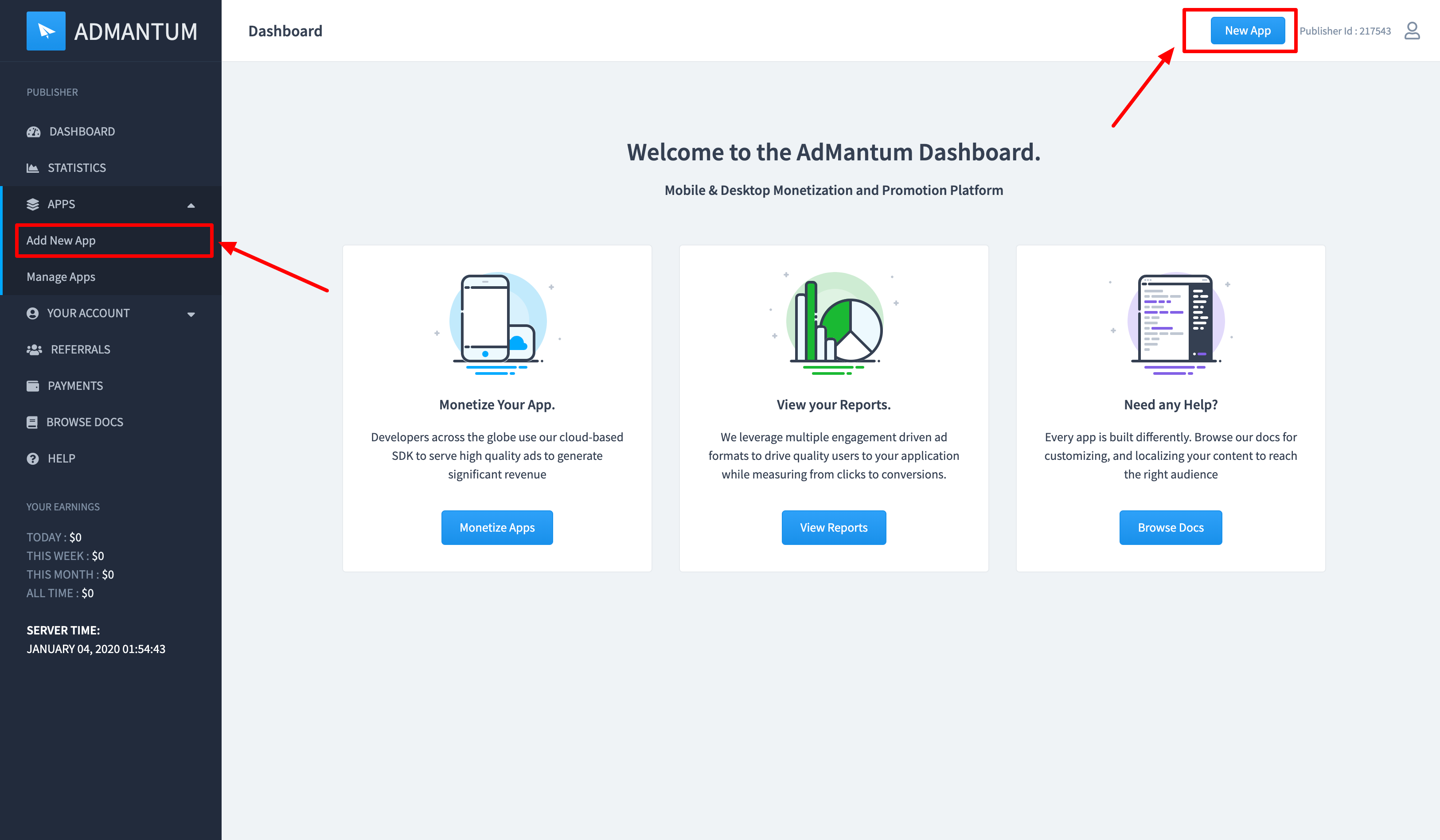
1. Login into your ***AdMantum Dashboard*** and Go to `Apps -> Add New App`
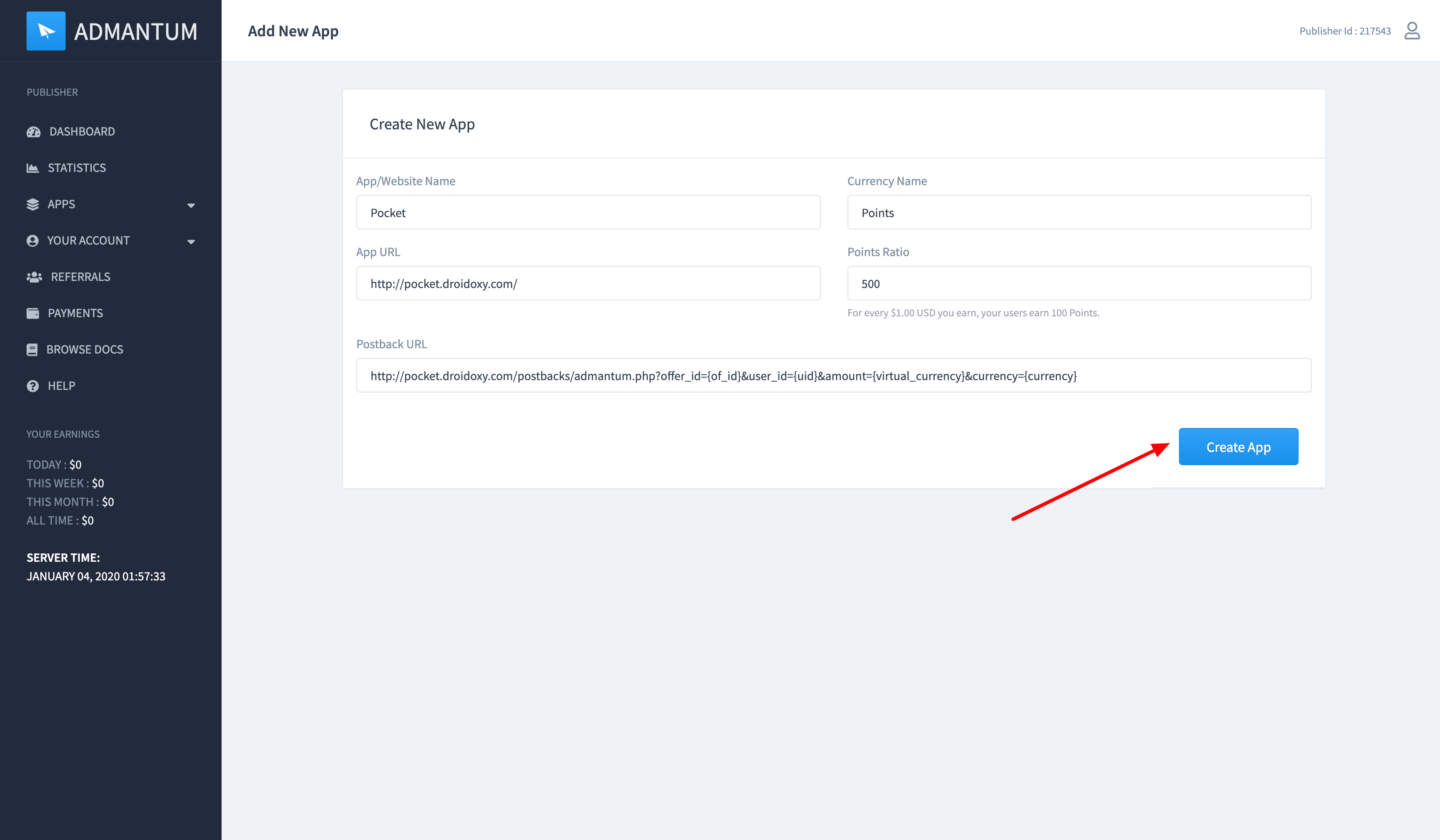
 2. Give your App Details like below and click on `Create App` button.
 3. Go to `Apps -> Manage` on the AdMantum sidebar and copy the `Pub Id`, `App Id` and `Secret Key`
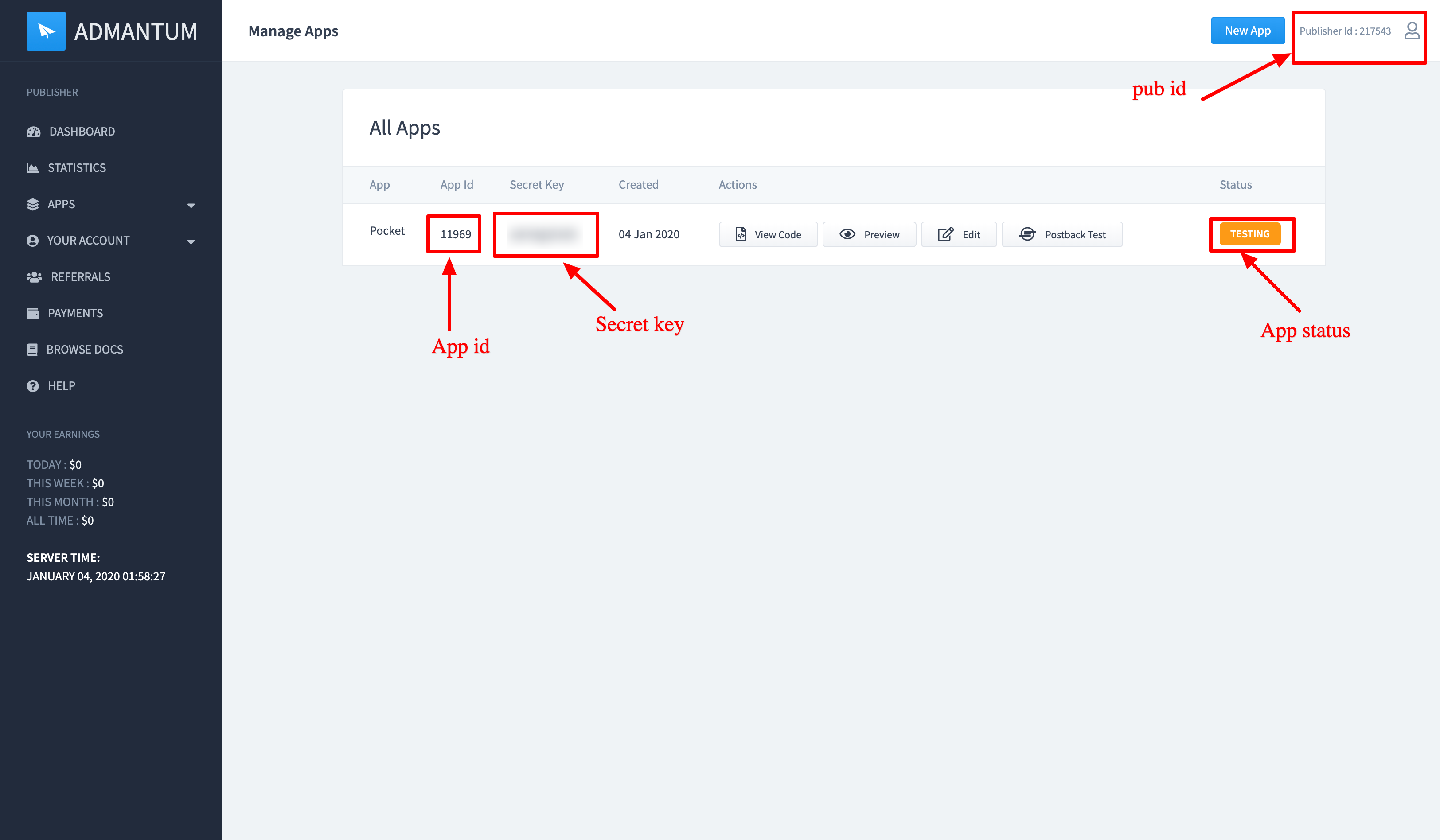 4. Additional Step : Make your App Status Live on AdMantum
By default, your App Status will be as **Testing**
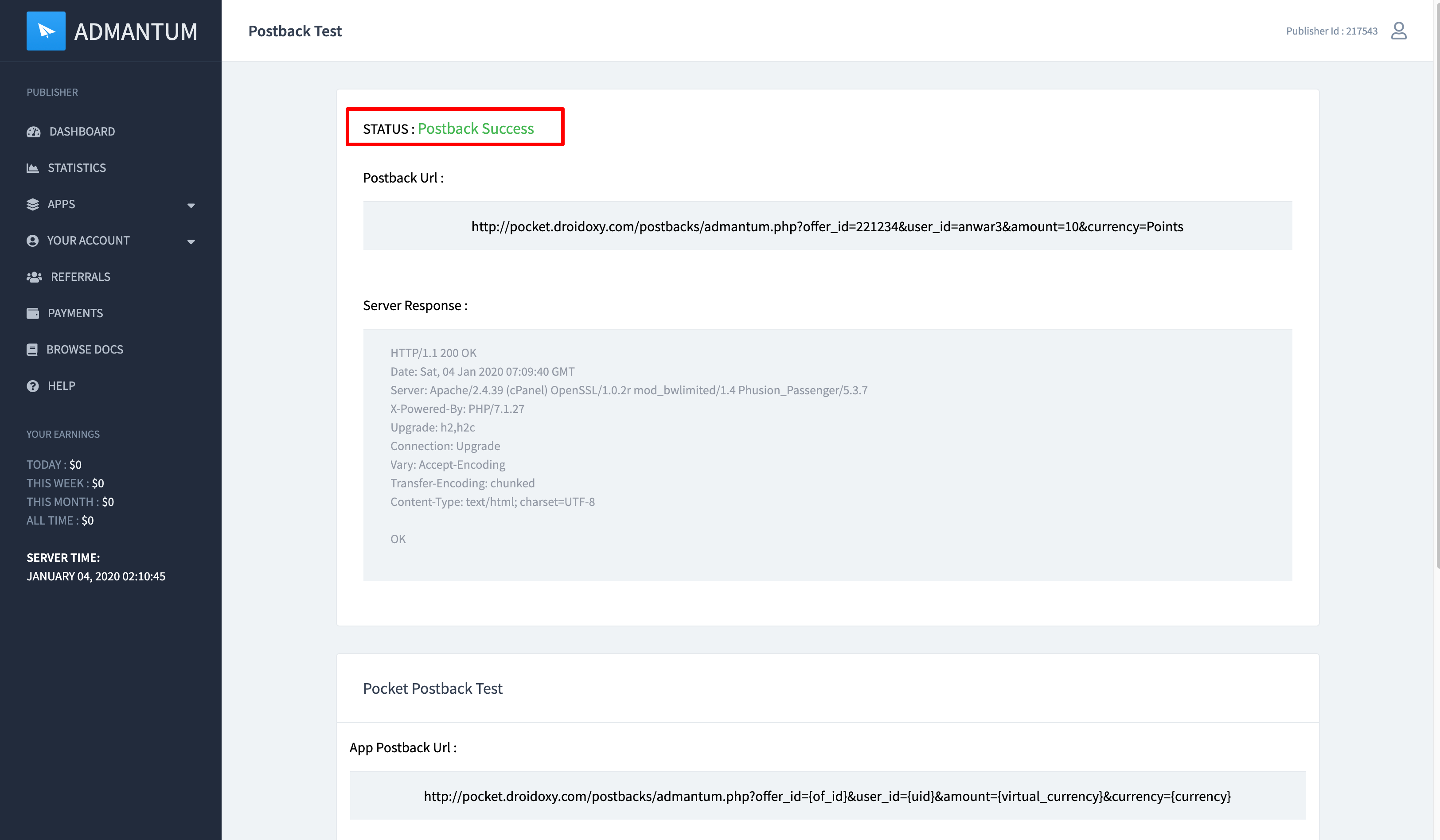
To Make it **Live** or to get Approved, we need to do a successful Postback Test
### Postback Test
Follow the below steps to make a postback test on the AdMantum platform
1. Go to `Apps -> Manage` on the AdMantum sidebar
2. Select the app and click on **Postback Test button** to go to Postback test page
3. Input an valid user id from your application to test the postback
4. Additional Step : Make your App Status Live on AdMantum
By default, your App Status will be as **Testing**
To Make it **Live** or to get Approved, we need to do a successful Postback Test
### Postback Test
Follow the below steps to make a postback test on the AdMantum platform
1. Go to `Apps -> Manage` on the AdMantum sidebar
2. Select the app and click on **Postback Test button** to go to Postback test page
3. Input an valid user id from your application to test the postback
 ## Integrating Offerwall
1. Login to Admin Interface (Pocket Script instance)
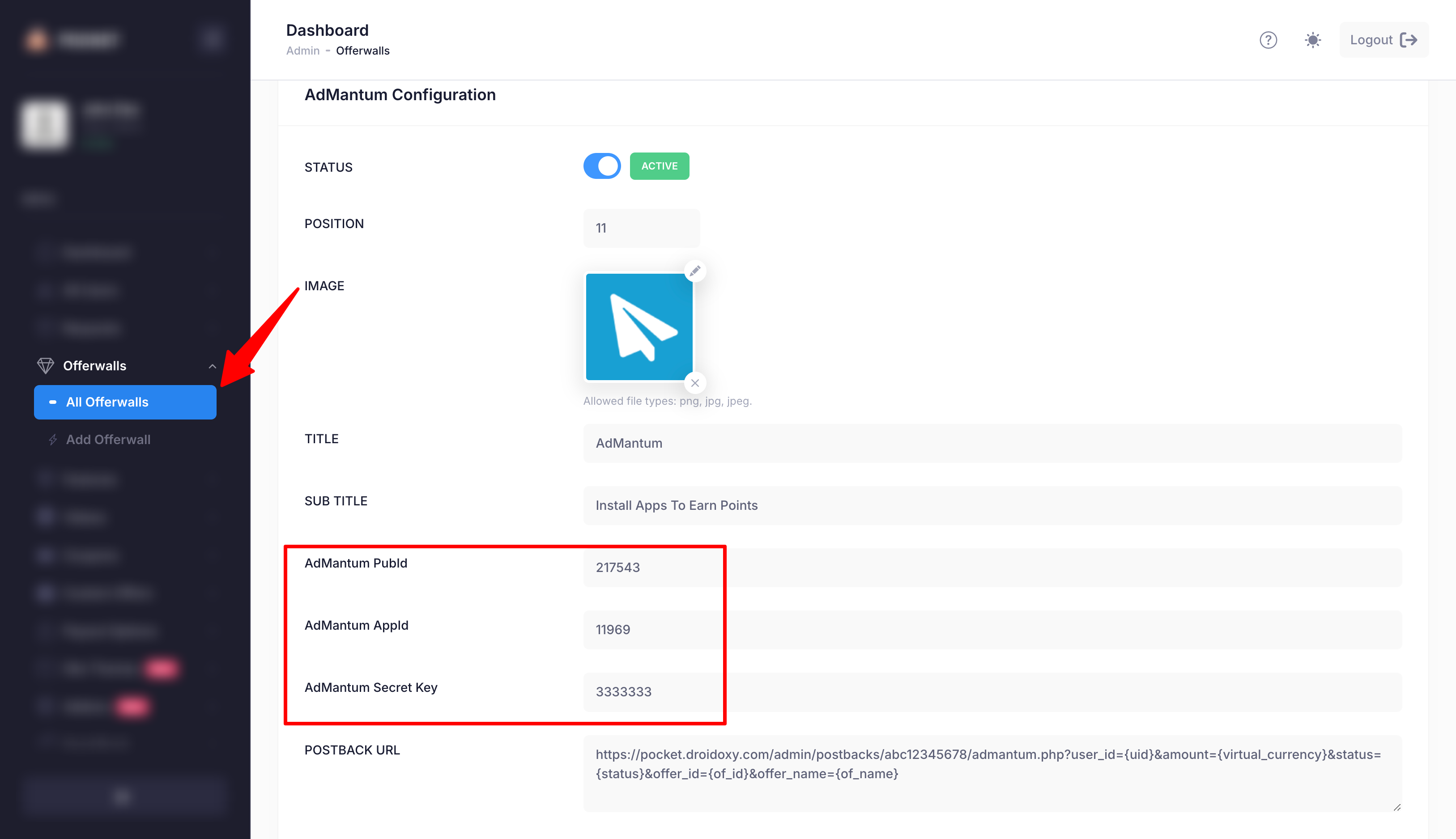
2. Navigate to `Offerwalls -> All Offerwalls` on the admin sidebar
3. Select and Edit AdMantum Offerwall and scroll down to Id's Section
4. Paste the copied `Pub Id`, `App Id` and `Secret Key` and click on the **Save Changes** button to complete the integration
## Integrating Offerwall
1. Login to Admin Interface (Pocket Script instance)
2. Navigate to `Offerwalls -> All Offerwalls` on the admin sidebar
3. Select and Edit AdMantum Offerwall and scroll down to Id's Section
4. Paste the copied `Pub Id`, `App Id` and `Secret Key` and click on the **Save Changes** button to complete the integration
 That's it!
## Need Help?
If you need any help or assistance, we're here for you! Please [reach out to our support team](https://droidoxy.com/support/)
That's it!
## Need Help?
If you need any help or assistance, we're here for you! Please [reach out to our support team](https://droidoxy.com/support/)