> ## Documentation Index
> Fetch the complete documentation index at: https://docs.droidoxy.com/llms.txt
> Use this file to discover all available pages before exploring further.
# Facebook Login
> Seamlessly integrate Facebook OAuth 2.0 authentication into your Pocket Script application, allowing users to log in with their Facebook accounts. This guide walks you through the setup process, from creating a Facebook App to configuring Pocket Script for a smooth "Login with Facebook" experience.
## Overview
Integrating Facebook as an identity provider offers your users a convenient and secure way to access your Pocket Script application. This feature leverages Facebook's OAuth 2.0 protocol, ensuring a streamlined authentication process while maintaining high security standards.
Your domain must have a valid SSL certificate installed for the Facebook login to work
## Getting Facebook App ID and Secret Key ?
1. Log in to [Facebook for Developers](https://developers.facebook.com/) and either select an existing app or create a New App
if you already have an existing app then **skip to step 3**
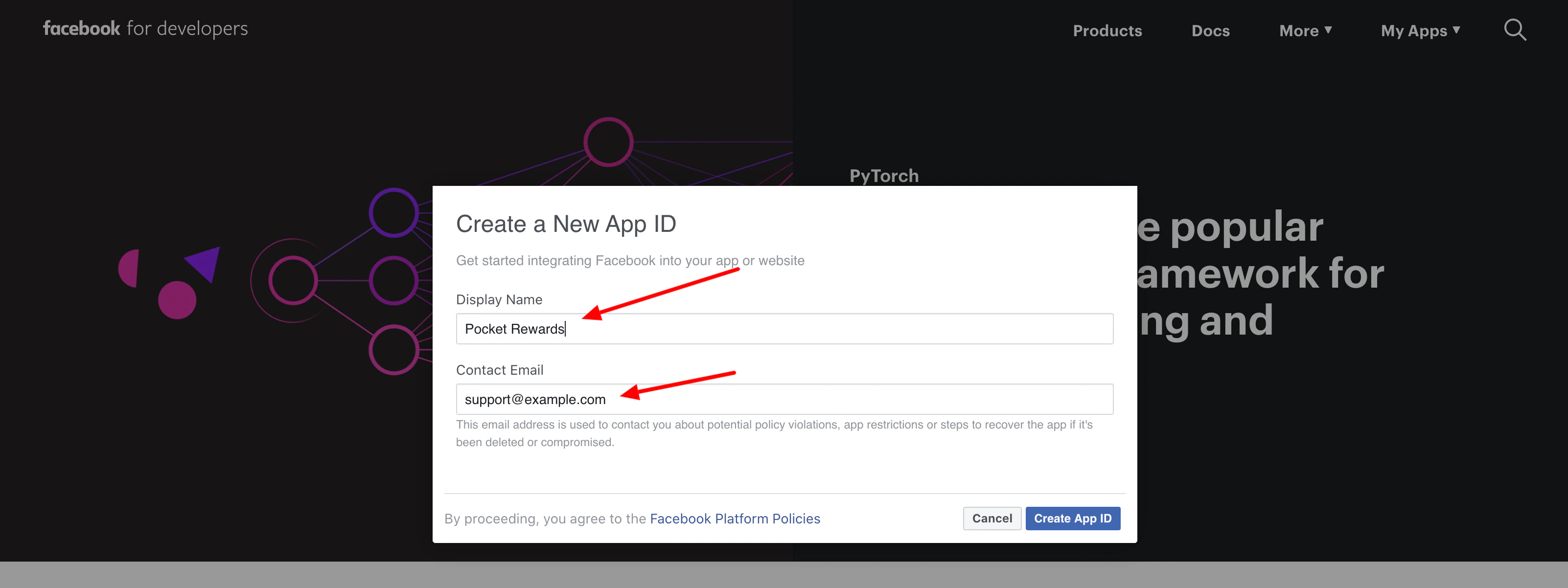
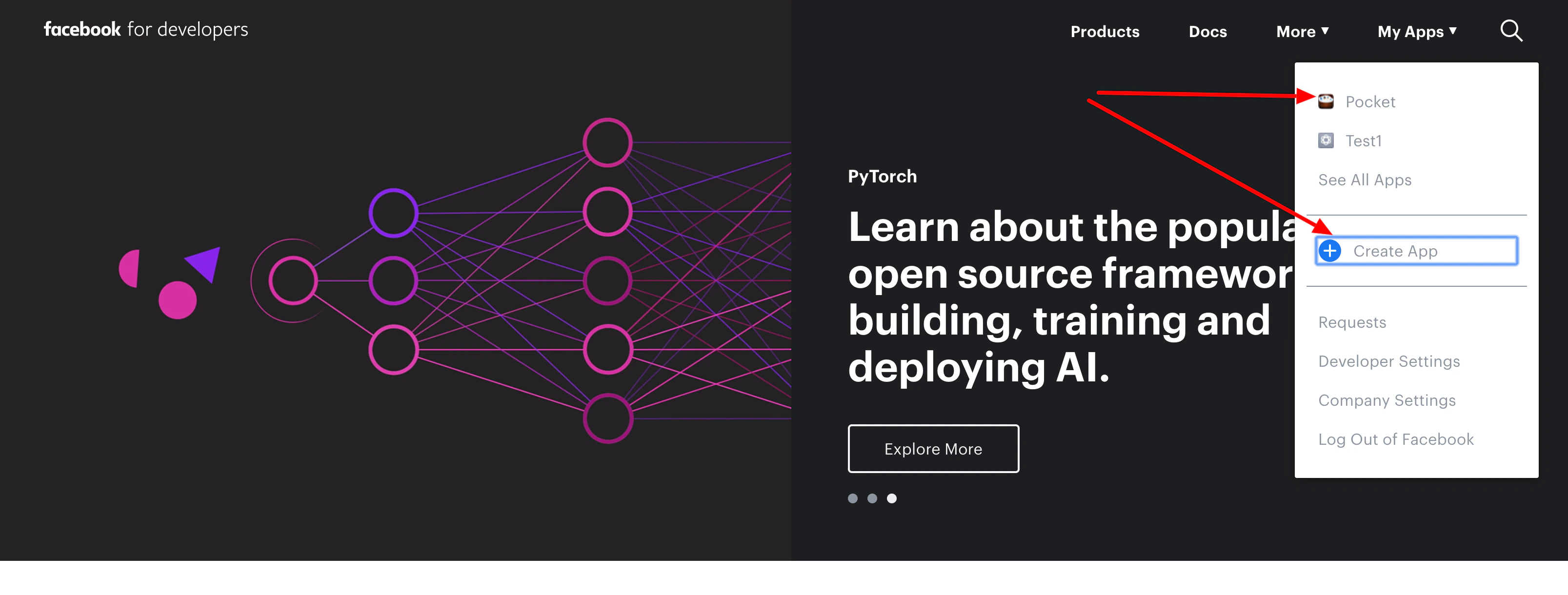 2. Create a New App
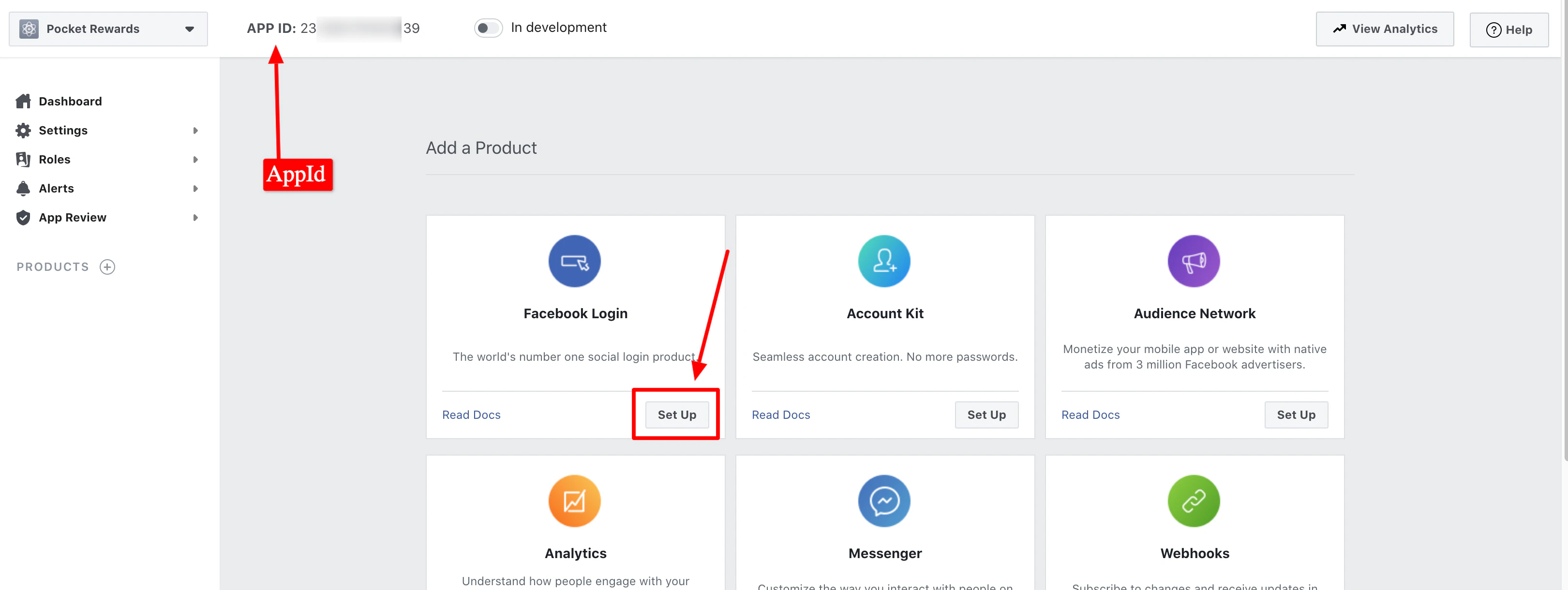
 3. Then Setup Facebook Login
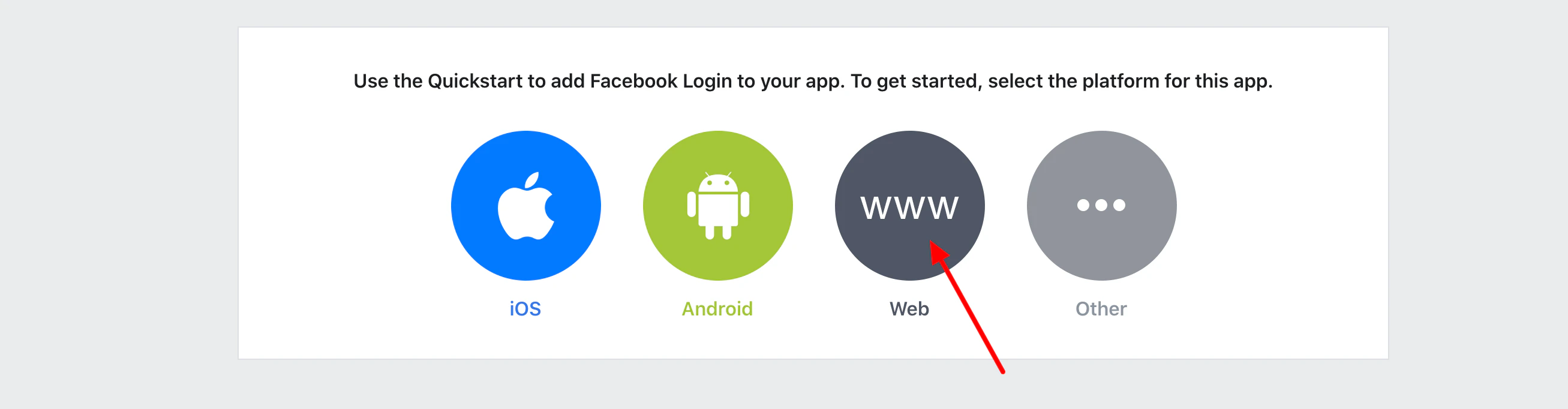
 4. Select `Web` as we are configuring Facebook login for the web version
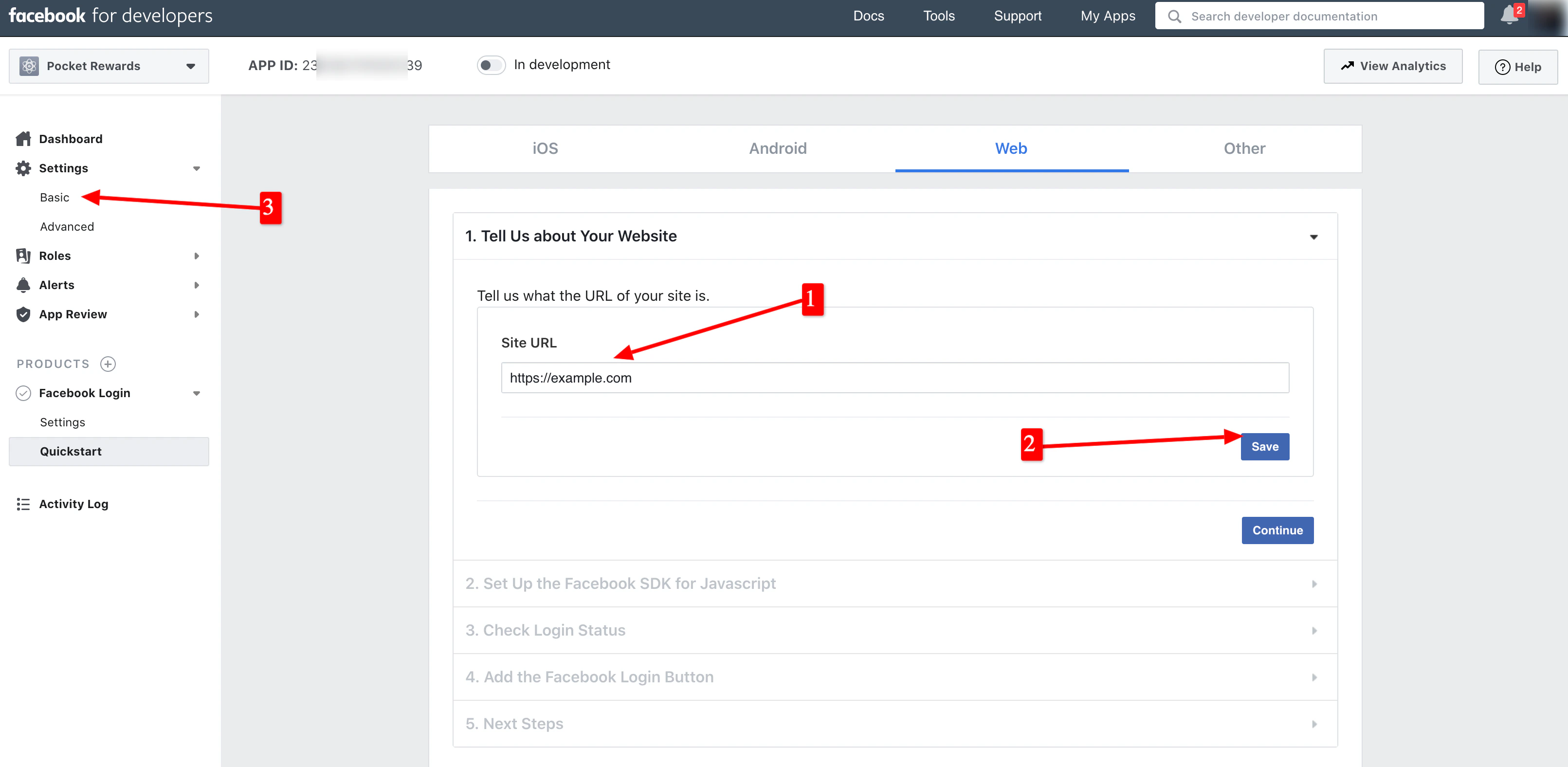
 5. Give your site URL and click on `save`
* You can ignore the other quickstart steps
* Navigate to `Settings -> Basic` on the sidebar
5. Give your site URL and click on `save`
* You can ignore the other quickstart steps
* Navigate to `Settings -> Basic` on the sidebar
 6. Simply copy your `App ID` and `App Secret`
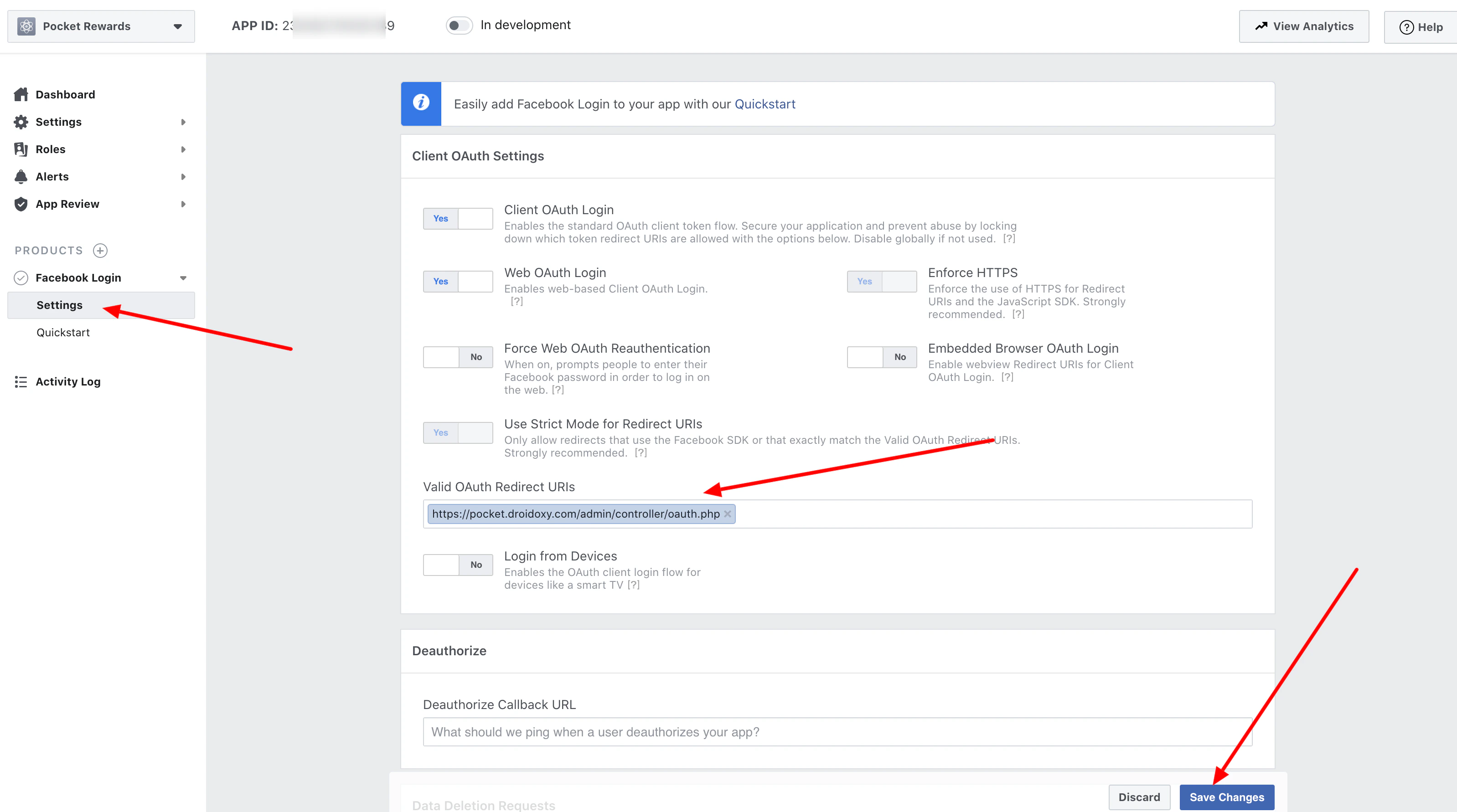
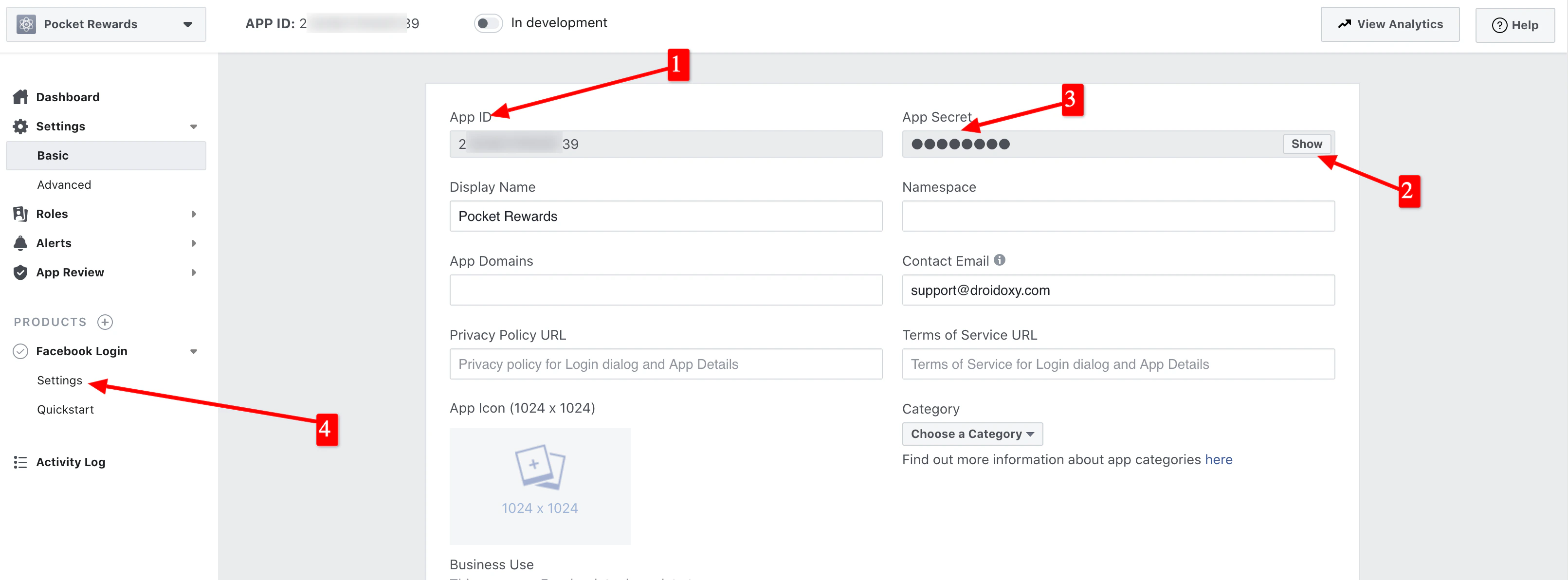 7. Finally, Go to **Facebook Login -> Settings** (No. 4 in the above image) to add a valid **OAuth redirect URL** to finalize our settings
For Valid OAuth redirect URIs, append `admin/controller/oauth.php` to your website URL
* For the main domain install at ***example.com***, enter your URL as:
```
https://example.com/admin/controller/oauth.php
```
* For sub-domain install at ***subdomain.example.com***, enter your URL as
```
https://subdomain.example.com/controller/oauth.php
```
* For subfolder install at ***example.com/subfolder***, enter your URL as
```
https://example.com/subfolder/controller/oauth.php
```
7. Finally, Go to **Facebook Login -> Settings** (No. 4 in the above image) to add a valid **OAuth redirect URL** to finalize our settings
For Valid OAuth redirect URIs, append `admin/controller/oauth.php` to your website URL
* For the main domain install at ***example.com***, enter your URL as:
```
https://example.com/admin/controller/oauth.php
```
* For sub-domain install at ***subdomain.example.com***, enter your URL as
```
https://subdomain.example.com/controller/oauth.php
```
* For subfolder install at ***example.com/subfolder***, enter your URL as
```
https://example.com/subfolder/controller/oauth.php
```
 ## Final Steps
Paste the copied keys in your admin panel by following the steps below
* Log in to your Admin Interface (Pocket script instance)
* Navigate to `Settings -> Configuration -> Web App Configuration` from the admin sidebar
* Scroll down to the `Social Login` Section
* And paste the copied `Facebook App ID` and `Facebook Secret Key`
That’s it!
## Need Help?
If you need any help or assistance, we're here for you! Please [reach out to our support team](https://droidoxy.com/support/)
## Final Steps
Paste the copied keys in your admin panel by following the steps below
* Log in to your Admin Interface (Pocket script instance)
* Navigate to `Settings -> Configuration -> Web App Configuration` from the admin sidebar
* Scroll down to the `Social Login` Section
* And paste the copied `Facebook App ID` and `Facebook Secret Key`
That’s it!
## Need Help?
If you need any help or assistance, we're here for you! Please [reach out to our support team](https://droidoxy.com/support/)